
graphviz绘图学习
资料收集
范例
其他参考
图的属性
Record-based节点
节点属性
连线样式属性
html表格
subgraph定义子图
使dot支持中文
生成图形
命令行全局设置
添加注释
关于graphviz结点的布局
学习
资料收集
GraphvizOnline:
http://dreampuf.github.io/GraphvizOnline/
https://github.com/dreampuf/GraphvizOnline
graphviz语方法:
graphviz的基本语法及使用:https://blog.csdn.net/mouday/article/details/80902992
graphviz dot语言学习笔记:https://www.jianshu.com/p/e44885a777f0
Dot脚本语言语法整理:https://blog.csdn.net/jy692405180/article/details/52077979
SVG (可缩放矢量图形):
(Scalable Vector Graphics,SVG)是W3C推出的基于XML的二维矢量图形标准。
SVG可以提供高质量的矢量图形渲染,同时由于支持JavaScript和文档对象模型,SVG图形通常具有强大的交互能力。
另一方面,SVG作为W3C所推荐的基于XML的开放标准,能够与其他网络技术进行无缝集成。
graphviz: http://www.graphviz.org/
Gravizo说明范例:https://g.gravizo.com/
支持DOT, PlantUML, UMLGraph语法和JSON格式的SVG,在线调用Graphviz渲染并嵌入到markdown、html中。
注:https://g.gravizo.com/使用RGB方式color="#FF0000"指定颜色会报错,改为color=red就可以。
好用的markdown工具Typora:https://typora.io/ ,在Typora编辑器中可直接嵌入graphviz、所见即所得:
用markdown语法嵌入:
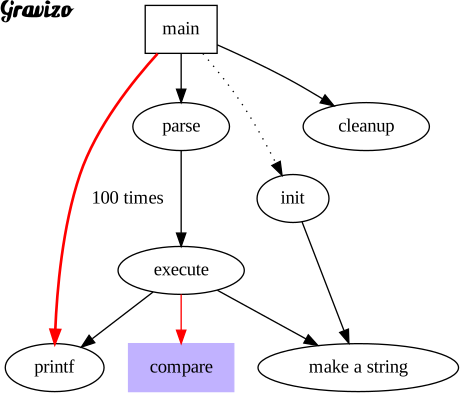
用img标签嵌入:
但vimwiki对这种多行的标签处理,只能转换为单行方式、或者利用online站点转换为data:image码后再嵌入。
范例
digraph ws {
nodesep = .5;
//rankdir = LR; //指定绘图的方向 (LR从左到右绘制)
node[shape=record, width=.1, height=.1];
//site domain
node[color="#550000"];
site[label="{WebSite
| http://mysite.com
| http://www.mysite.com}
"];
//logs
logs[label="{logFile|mysite.access.log|mysite.error.log}"];
//locations
node[color="#008800"];
uri1[label="{user|role}"];
uri2[label="{app|commdata}"];
uri3[label="{pushrouter|message}"];
//Upstreams
node[color="#000088"];
spBase[label="{spBase|192.168.1.100:8080|192.168.1.101:8080}"];
spData[label="{spData|192.168.1.102:8080|192.168.1.103:8080}"];
spPush[label="{spPush|192.168.1.104:8080|192.168.1.105:8080}"];
//links
site -> {logs,uri1,uri2,uri3};
uri1 -> spBase;
uri2 -> spData;
uri3 -> spPush;
}
在http://dreampuf.github.io/GraphvizOnline/ 中用上面代码转换出图片生成编码,直接用img标签嵌入html中即可:

以img、object嵌入data:image方式:
整合成单行代码,调用 https://g.gravizo.com/svg 生成图片方式:
其他参考
图的属性
digraph graph1 {
bgcolor = red;
graph [bgcolor = red];
}
bgcolor:设置图的背景颜色,可以使用red、blue、green等形式,或者使用"#rrggbb"形式。
label:设置图的描述。label会继承到子图,子图里如果不想重复显示必须手动设置
rankdir:设置图的方向,包括:TB(top to bottom)、BT(bottom to top)、LR(left to right)、RL(right to left)。
rotate:设置图的旋转。如:rotate = 90便是逆时针旋转90度。
ratio:设置图的长宽比,可以是一个浮点数,也可以是:fill、compress或者auto。
Record-based节点
https://graphviz.org/doc/info/shapes.html
设置为record和Mrecord的结点的label属性可以很方便地生成单列的表格和UML图等。(类似于XAML里面的stack)
用一对双引号+一对花括号包含起来的就是表格内容,不同的格子之间用符号 | 隔开,尖括号里的内容表示一个锚点(具体讲解见下文)。
//其中
是定义的锚点名称,不会显示。example [ shape = record, label = "{
cell1 | cell2 | cell3}" ];digraph g {
nodesep = .5;
rankdir = LR; //指定绘图的方向 (LR从左到右绘制)
//定义竖直节点
node[shape=record, width=.1, height=.1];
//我是一个属性, 我有7个属性,
node0[label="
//定义横向节点
node[shape=record,width=1.5,color=black];
node1[label="{ good }"]; //我也是一个节点, 定义了3个属性 node2[label="{ }"]; node3[label="{ }"]; node4[label="{ }"]; node5[label="{ }"]; node6[label="{ }"]; node7[label="{ }"]; //建立节点之间的联系 node0:f0 -> node1:n; node0:f1 -> node2:n; node0:f2 -> node3:n; node0:f5 -> node4:n; node0:f6 -> node5:n; node2:p -> node6:n; node4:p -> node7:n; node0:f6 -> node1:p; node0 -> node6; } 节点属性 使用node []和edge []可以分别设置结点和边的全局设置: digraph graph1 { node [shape = egg]; edge [style = dashed]; a -> b; } 结点的常用属性: shape:设置结点形状。包括: Mrecord(圆角矩形)、record(矩形)、circle(圆形)、box(矩形,和record略有区别,下面会讲到)、egg(蛋形)、doublecircle(双圆形)、plaintext(纯文本)、 ellipse(椭圆,默认)。 label:设置结点的显示内容,内容用双引号包含,可以使用转义字符。当结点内容!=结点名时使用 style:设置结点的样式。包括: filled(填充)、dotted(点状边框)、solid(普通边框)、dashed(虚线边框)、bold(边框加粗)、invis(隐形)。 color:设置边框颜色。可以使用单词形式或者"#rrggbb"形式。 如果设置了style=filled,此时设置的color是代表整体颜色。 但是如果设置了fillcolor再设置color的话,color代表边框颜色。 fillcolor:设置填充颜色,仅style=filled时有效。 width:设置结点宽度。 height:设置结点高度。 peripheries:设置结点边框个数。 fontcolor:设置结点内容颜色。可以使用单词形式或者"#rrggbb"形式。 //定义a节点为长方形, 节点显示的文本为"Hello world"样式为填充, 填充颜色为#ABACBA a[shape=box,label="Hello world",style=filled,fillcolor="#ABACBA"]; //设置以下节点默认属性 node[shape=record, width=.1, height=.1]; digraph g { //==========定义节点关系============ a->b; b->c; c->a; c->d->e->f; d->g; e->h; //==========定义节点属性============ //定义a节点为长方形, 样式为填充, 填充颜色为#ABACBA a[shape=box,label="Server1\nWebServer",fillcolor="#ABACBA",style=filled]; //定义b为5边形, 标签为"bb", 样式为填充, 填充色为red b[shape=polygon,sides=5,label="bb",style=filled,fillcolor=red]; //c, 默认为椭圆 d[shape=circle]; //园 e[shape=triangle]; //三角形 f[shape=polygon, sides=4, skew=0.5]; //平行四边形 g[shape=polygon, distortion=0.5]; //梯形, 上边长 h[shape=polygon, distortion=-.5]; //梯形, 下边长 } 连线样式属性 边的常用属性: style:设置边的形状。包括:solid(实线)、dashed(虚线)、dotted(点线)、bold(加粗)、invis(隐形)。 label:设置边标签。内容用双引号包含,可以使用转义字符。 color:设置边颜色。可以使用单词形式或者"#rrggbb"形式。 arrowhead:设置结点箭头样式。包括:none、empty、odiamond等。 # graph无向图,连接线-- # digraph有向图,连接用-> digraph g { //edge[style=dashed]; //定义边的样式, 虚线 node[peripheries=2, style=filled, color="#eecc80"]; a->b [color=red, style=dashed]; //定义边的颜色, 红色 (b和方括号之间必须有空格) b->c; //箭头, 三角形; 箭尾, 菱形 b->d [arrowhead=box]; //箭头, 长方形 b->e [dir=none]; //没有箭头 d->f [dir=both]; //双向箭头 f->h [label=go]; //定义edge的标签 f->k [arrowhead=diamond]; //更改箭头形状 (更多箭头形状请参考官方文档: http://www.graphviz.org/content/arrow-shapes) k->y [headlabel="哈哈", taillabel="洗洗"]; } html表格 如果record生成的表格不符合预期,还可以使用html标签生成表格。只需要将结点的label属性设置为相应的html代码(用一对尖括号包含)即可。 port属性可以为td增加一个锚点。 table1 [label=< >]; cell的锚点可以让使用者在cell之间画线。 引用cell的锚点的语法为:table: anchor_name digraph example2 { node [shape = record]; table1 [label = "{ table2 [label = "{ table1: head -> table2: head; } digraph structs { node [shape=plaintext] struct1 [label=< struct2 [label=< struct3 [label=< struct1:f1 -> struct2:f0; struct1:f2 -> struct3:here; subgraph定义子图 digraph g { //定义一个子图, subgraph定义子图 //注意:子图的名字必须以cluster开始,否则解析引擎无法进行识别 subgraph cluster0 { node[style=filled, color=white]; //定义子图中的节点的样式 style=filled; //定义子图的样式 color=red; //定义子图的填充色 a0->a1->a2->a3; //定义节点, 及节点之间的关系 label="process #1"; //定义子图的标签 } //又定义一个子图 subgraph cluster1 { node[style=filled, color=white]; style=filled; color=blue; //定义子图的填充色 b0->b1->b2->b3; //定义节点及其关系 label="process #2"; labelColor=white; } //定义子图之间的关系 start->a0; start->b0; a1->b3; b2->a3; a3->end; b3->end; 使dot支持中文 Graphviz默认是不支持中文的,输入的中文在生成的图中显示为一个空方块。如果想要让其支持中文,可以尝试以下方法: 方法一:在命令行里指定-Nfontname=xxx.ttf,在gv文件中输入utf-8编码的汉字。 方法二:给graph、node和edge均设置fontname = xxx.ttf然后设置label。 生成图形 我们还可以巧妙地使用结点的某些属性来生成图形。如: circle [label="", shape="circle", width=0.5, fixedsize=true, style=filled, color=black]; 就生成了一个实心黑色圆形。 命令行全局设置 不仅可以使用代码里的全局设置,还可以在命令行里进行全局设置,这样做的好处就是可以根据不同要求来生成图形。 dot -Grankdir=LR -Nshape="plaintext" -Earrowhead="odiamond" -Tpng example.dot -o example.png # Grankdir = graph rankdir # Nshape = node shape # Earrowhead= edge arrowhead 其他的属性均按照这种规则进行填写。 添加注释 Dot的注释使用//(单行)或者/**/(多行)。 // 这是单行注释 /* 这是多行注释 */ 关于graphviz结点的布局 graphviz的节点出现在画布上的位置事实上是不确定的,依赖于所使用的布局算法,而不是在脚本中出现的位置,这可能使刚开始接触graphviz的开发人员有点不适应。graphviz的强项在于自动布局,当图中的顶点和边的数目变得很多的时候,才能很好的体会这一特性的好处。 学习 digraph G { //rankdir=LR; subgraph cluster_faw { style=filled; color=lightgrey; node [style=filled,color=white]; label = "一汽集团"; fawfm[label="一汽服贸"]; "智能网联办公室" -> "移动出行办公室" [label="独立"]; fawcx[label="一汽出行",fillcolor=red,style=filled]; "移动出行办公室" -> fawcx; "移动出行办公室" -> fawfm; fawcx -> "一汽智行国际租赁" [label="代集团管理",color=green]; } ykzc[label="易开租车"]; fawzk[label="一汽易开",fillcolor=red,style=filled]; fawfm-> fawzk [label="占股34%"]; ykzc -> fawzk; ykzc -> "分时租赁:新能源车,天津"; kkcx[label="分时租赁:开开出行",fillcolor=red,style=filled]; fawfm->kkcx [label="自主研发"]; kkcx -> "2019年末彻底停止服务"; fawzk -> "2019年末彻底停止服务"; "滴滴"-> "洪流联盟"; "移动出行办公室" -> "首汽约车" [label="战略合作"]; "移动出行办公室" -> "洪流联盟" [label="重要一员"]; "移动出行办公室" -> "一汽惠迪" [label="出车"]; "滴滴"-> "一汽惠迪" [label="出平台出技术"]; fawcx_yw[shape=record,width=0.1,label="{网约车|分时租赁|融资租赁|汽车长短租|二手车}"]; fawcx_issue[shape=record,width=0.1,label="{ 丢车之前,一汽出行根本没有风控部门 |层层转包、司机或渠道商跑路的事件屡见不鲜 |渠道商忽然带着一百多万元押金和当月租金“人间蒸发” |问题缠绕的车辆占一汽出行车辆总数的比例近10% |2000多辆车掉入陷阱: |司机断供或渠道商跑路带来的经济纠纷 |840多辆车被内部判定为“丢失” |被拆掉GPS 彻底失联 |偷偷运往运营范围之外很远的省份等待“销赃” |更有甚者已被恶意过户} "]; fawcx_ywwt[shape=record,width=0.1,label="{ 大量车没有运营 |广州子公司有三个大客户经理每年连10辆车都租不出去 |大多一汽集团内部客户 |浩物集团天津仓库里也停放了上千辆红旗车 |在一汽华梦所在的深圳市,则没有任何车辆在运营 |一汽惠迪在滴滴内部越来越不受重视,车辆的运营率也越来越低} "]; fawcx -> "fawcx_yw" -> fawcx_issue [color=green]; fawcx -> "一汽惠迪" [label="替换一汽服贸股东身份",color=green]; "一汽惠迪"[fillcolor=red,style=filled]; "一汽浩物"[fillcolor=red,style=filled]; "一汽华梦"[fillcolor=red,style=filled]; {"一汽惠迪","一汽浩物","一汽华梦"} -> fawcx_ywwt; fawcx -> "一汽浩物"[color=green]; fawcx -> "一汽华梦"[color=green]; "天津浩物" -> "一汽浩物"; "深圳华梦" -> "一汽华梦"; "旗妙出行"[label="旗妙出行:自主研发中高端政商务",fillcolor=yellow,style=filled,color="green"]; fawcx -> "旗妙出行"[color=green]; T3[label="T3出行",fillcolor=yellow,style=filled]; {T3,"旗妙出行"} -> fawcx_ywwt; "东风" ->T3; "上汽" ->T3; fawcx -> T3[color=green]; }
1
2
3
4
>];left middle right
>];one two
>];
hello
worldb
g
h
c d e
f